![MT White Logo _ PNG-01.png]](https://help.medicaltracker.co.uk/hs-fs/hubfs/MT%20White%20Logo%20_%20PNG-01.png?height=31&name=MT%20White%20Logo%20_%20PNG-01.png)
We've recently strengthened and improved our team permissions around adding incidents.
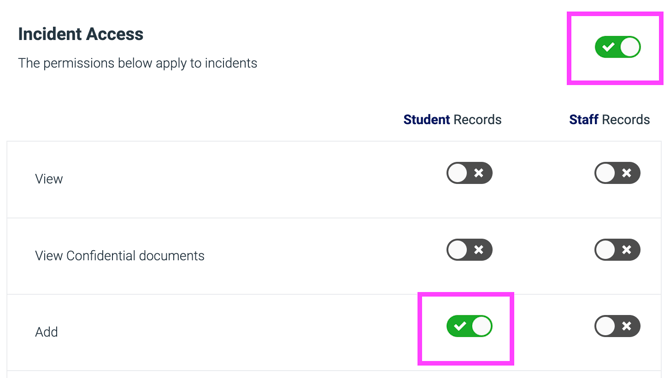
To ensure that staff can add incidents to the platform, you'll need to ensure that they belong to a team with the following permissions ON:
- Incidents module
- Students add
- [where applicable] Staff add
Note: You'll need to be a super admin for your organisation or belong to a team with the Admin module turned on to do this.
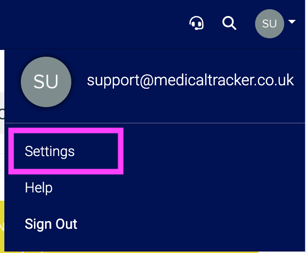
1. Click your initials in the top right of the app, and click Settings
2. Head to Users & teams > select the team you wish to edit from the 'All Users' drop down > Click Team actions > Edit team
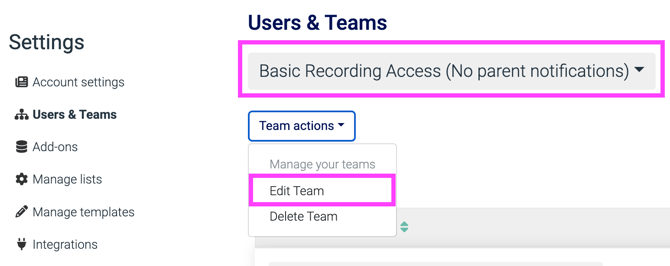
If you see this banner at the top of Users & Teams it means that you will need to contact your trust or federation as these permissions are controlled centrally for all schools.

3. On the Incidents tab, make sure the following settings are ON to enable users in that team to record student incidents. You can also decide if this team can add staff incidents.
Remember to click Save.
Users will to log out and back in to Medical Tracker to see these changes reflected.