![MT White Logo _ PNG-01.png]](https://help.medicaltracker.co.uk/hs-fs/hubfs/MT%20White%20Logo%20_%20PNG-01.png?height=31&name=MT%20White%20Logo%20_%20PNG-01.png)
Why can't I see an option to link my CPOMS account to Medical Tracker?
The Medical Tracker x CPOMS integration is rolling out to customers in batches in late April and early May 2026.
If you know the setting is on for your school, but cannot see an option to link your account, then please contact support@medicaltracker.co.uk and we can enable the setting for you.
Who can send incidents to CPOMS?
Any user who has access to log an incident in Medical Tracker will be able to send an incident to CPOMS.
The record in CPOMS will always include the email address of the user who sent the incident across, so you can follow up with them directly if you need to.
How are Medical Tracker incidents categorised in CPOMS?
All Medical Tracker incidents will be assigned to the Medical Tracker category.
Where can I find Medical Tracker incidents in CPOMS?
Most incidents will be automatically linked to a student based on their UPN and name.
Where we are unable to find a match on UPN or name, the incident will be sent to the in-tray for triage in CPOMS.
What happens if I edit an incident that has already been sent to CPOMS?
If an incident has been sent to CPOMS already, we assume you would want any edits to be sent across to CPOMS as well.
Because of how the integration works via the CPOMS API, this will send a new record across to CPOMS, rather than editing the existing record. This has the added benefit of allowing you to see an audit trail of what was changed in CPOMS.
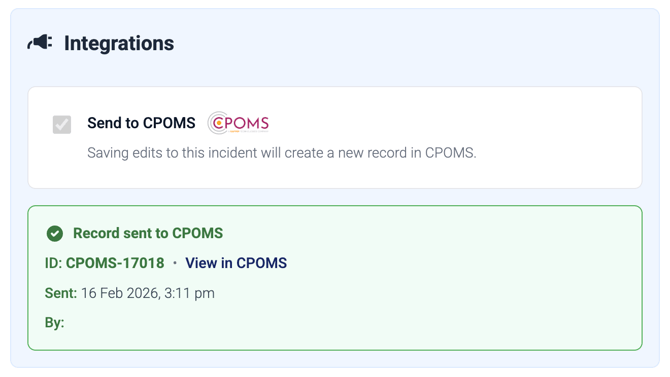
When you edit an incident that has been sent to CPOMS already, the Send to CPOMS box at the bottom of the form will be checked for you, and cannot be unchecked. You will also see information about the last time the record was sent to CPOMS.
What should I do if I see an error when I try to send an incident to CPOMS?
Any errors will appear like this on the incident summary page:
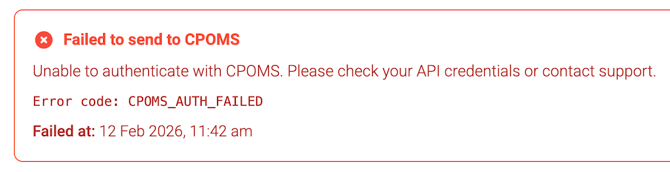
Please contact the support team with any errors by emailing support@medicaltracker.co.uk. Make sure you include:
- a screenshot of any errors
- the date, time and student name on the incident
- the URL of the page
Help! I can't see anything in CPOMS.
If everything looks OK in Medical Tracker, but you can't see anything in CPOMS, it's likely that there's an issue with your CPOMS configuration.
First, check the permissions for the Medical Tracker user group on CPOMS:
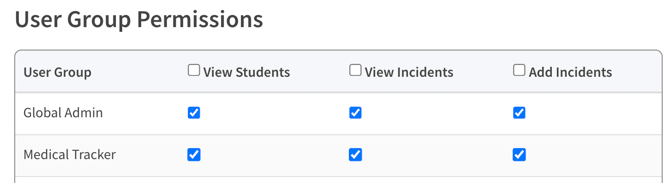
- Head to Admin > Categories > Medical Tracker to set the user group permissions.
- The Medical Tracker user group should have all permissions ON, as in the screenshot below:
Next, make sure that you've given the right users access to the Medical Tracker role:
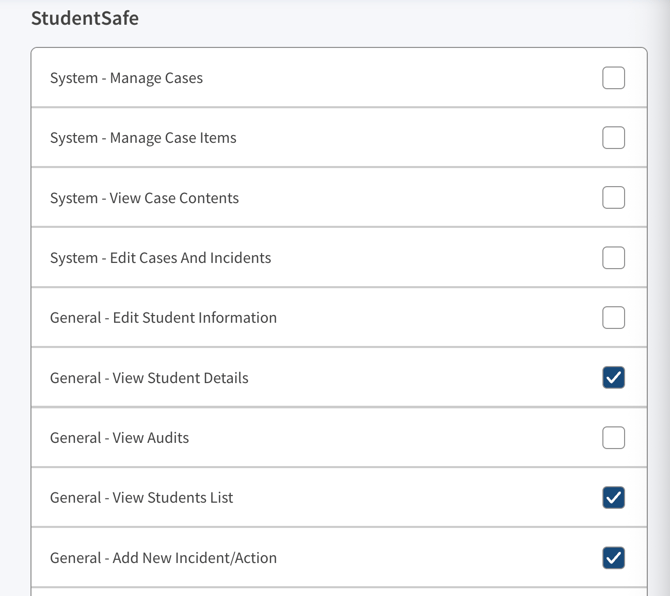
- Head to Admin > Roles and check the following permissions are ON, then save:
- General - View Student Details
- General - View Students List
- General - Add New Incident/Action
Lastly, check for Student Group restrictions:
-
Head to Admin > Users and select the Medical Tracker user.
-
It is important that the left hand column is empty. Press the double arrow to move permissions for Medical Tracker to the right. This allows the integration to see all students in those groups.
-
Click the check box ‘Can view students who do not have a group type’ to ensure any new students without groups are also allowed.
-
Click Save.
If following these steps does not help, please contact CPOMS support: support@cpoms.co.uk
My question isn't answered here. What should I do?
Please contact the support team by emailing support@medicaltracker.co.uk.