![MT White Logo _ PNG-01.png]](https://help.medicaltracker.co.uk/hs-fs/hubfs/MT%20White%20Logo%20_%20PNG-01.png?height=31&name=MT%20White%20Logo%20_%20PNG-01.png)
Coming November 2026
Requirements
- Parent notifications enabled in Medical Tracker (Settings > Incidents > Parent notifications)
- A current subscription to a Ventured Solutions messaging product. This includes:
- Eduspot (formerly Xpressions)
- Teachers2Parents
- Groupcall
- SchoolMoney
- BehaviourWatch
How it works
- Messages sent via SMS or push notification are saved in Medical Tracker's communication history and in your messaging app, providing an audit trail of what was sent, and when.
- Push notifications are not charged per message.
- Each SMS sent via Medical Tracker is deducted from your existing SMS bundle or credits. You can keep an eye on usage and costs by logging into your messaging app's dashboard.
If a push notification can't be sent to a parent or carer, your messaging app may send an SMS as a fallback. This setting is controlled in your messaging app, and not by Medical Tracker.
1. Set up your integration in Medical Tracker
You'll need to have Admin permissions in both Medical Tracker and your messaging product to set up this integration.
1. Head to Settings > Add ons > Eduspot. Click Get started with Eduspot. 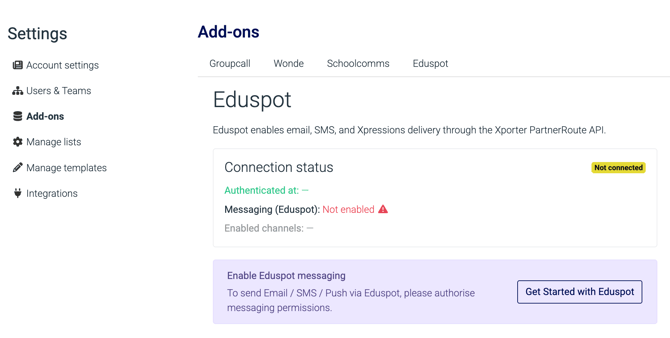
2. Follow the on-screen steps to authorise Medical Tracker to send messages via your messaging product. There are several screens to click through, and the first one looks like this:

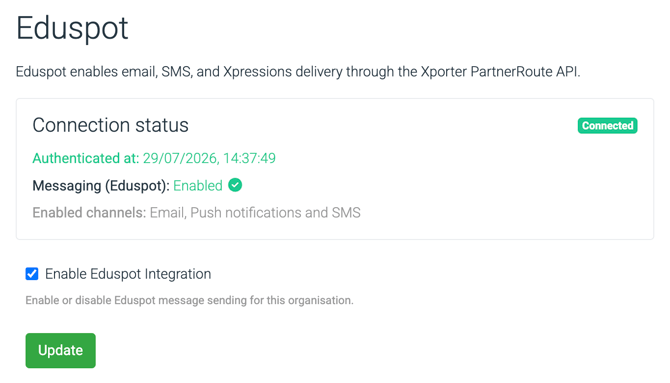
3. Once you've set up the integration, you'll see a screen confirming that the connection is live:
2. Testing the integration
We recommend sending a few test messages to confirm that the functionality works.
1. Head to the Incidents module and select any incident, or create a new, test incident.
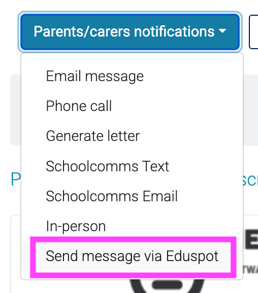
2. Click Send notifications > Parents/carers notifications > Send message via Eduspot
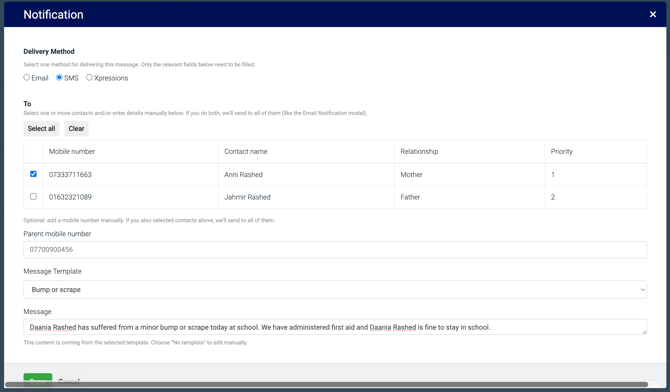
3. You'll then see a screen like the one below.
-
Select either SMS or push notification
- Either select people from the list (make sure they'll know this is a test first!) or type a mobile number you have access to in the Parent mobile number field beneath the table.
- Select a template or free type a message.
- Click Done.
4. You should then see a success message. If you've opted to send a push notification and there was an issue sending it, you may see a red error message instead. It's possible that your messaging app will then fallback to sending an SMS to that number - those settings are controlled in your messaging app.
5. Check that the SMS or push notification was received. It can take a minute or so for it to arrive.\
6. Head back to the test incident and scroll down to the Communication section at the bottom of the page to see a record of what was sent, and when.
If you run into any difficulties during set up or testing, please contact us: support@medicaltracker.co.uk with as much detail as possible.
FAQ
Which products does this work with?
To send SMS or push notifications to parents from Medical Tracker, you need to be a current customer of one or more of these VenturEd Solutions products:
- Eduspot (formerly Xpressions)
- Teachers2Parents
- Groupcall
- SchoolMoney
- BehaviourWatch
How does it work?
Messages sent via SMS or push notification are saved in Medical Tracker's communication history and in your messaging app, providing an audit trail of what was sent, and when.
What does it cost?
- Push notifications—i.e. sending messages to a parent app like Eduspot—are not charged per message.
- Each SMS sent via Medical Tracker is deducted from your existing SMS bundle or credits. You can keep an eye on usage and costs by logging into your messaging app's dashboard.
If a push notification can't be sent to a parent or carer, your messaging app may send an SMS as a fallback. This setting is controlled in your messaging app, and not by Medical Tracker.
How do I set up the integration?
Follow the steps in this help doc: Set up your Eduspot integration