![MT White Logo _ PNG-01.png]](https://help.medicaltracker.co.uk/hs-fs/hubfs/MT%20White%20Logo%20_%20PNG-01.png?height=31&name=MT%20White%20Logo%20_%20PNG-01.png)
How do I link stock to more than one condition?
- Go to Medication Stock > New
- Enter the name of the student
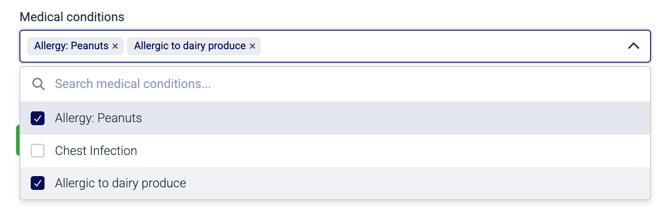
- Any medical conditions linked to that student will appear in the dropdown. Select all conditions that this new medication stock is linked to:
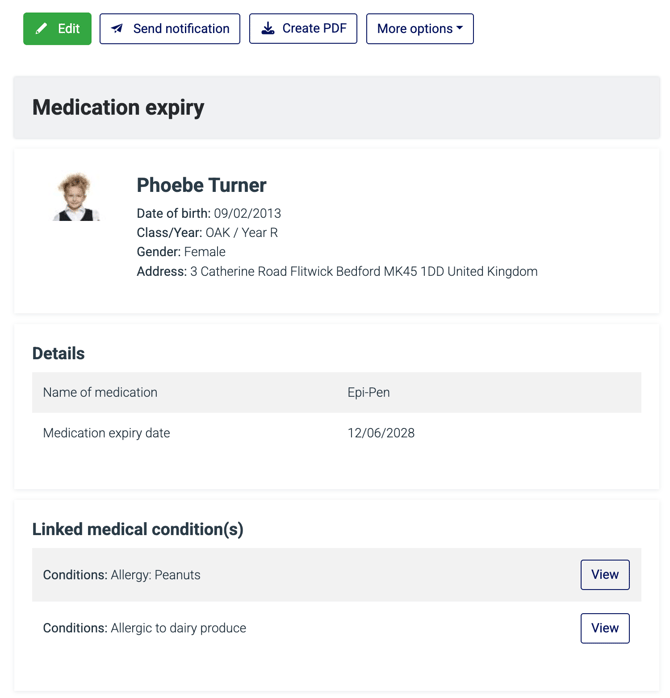
- Continue filling out the form and save. On the summary page, you can easily see which condition(s) the stock is linked to and click to view.
How do I unlink stock?
- Go to Medication Stock and search for the child or medication name and click to view it.
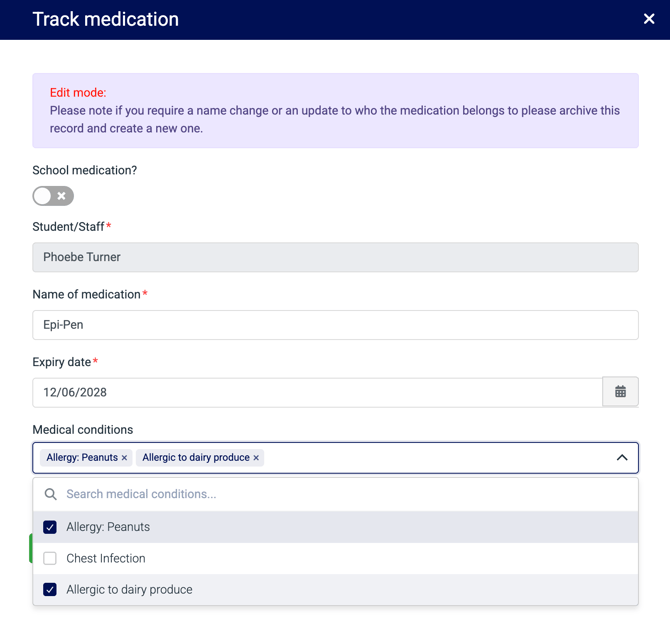
- Click Edit and then amend which condition(s) the stock is linked to.
- Click save
I can't see the option to link stock to more than one condition
As of June 2026, only new stock added to the Medication stock module directly can be linked to more than one condition.
Over the summer, we'll ensure that stock created automatically from care plans has this functionality too, before finally migrating all existing stock records. We expect this to be complete by September 2026.