![MT White Logo _ PNG-01.png]](https://help.medicaltracker.co.uk/hs-fs/hubfs/MT%20White%20Logo%20_%20PNG-01.png?height=31&name=MT%20White%20Logo%20_%20PNG-01.png)
1) Log into your Medical Tracker account.
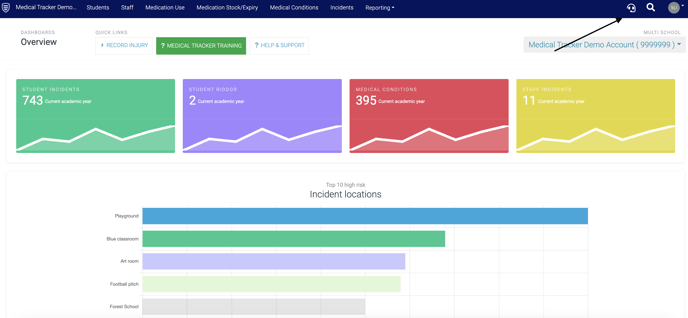
2) Navigate to the authorisation button and begin authorisation by clicking on the headset icon.
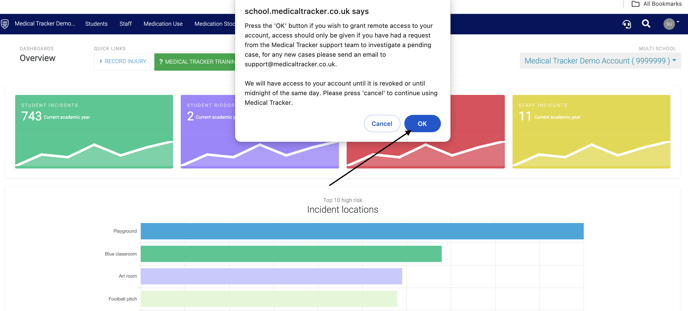
3) A pop-up message will appear, please click 'OK' to authorise access to your account
4) Once activated, the authorisation button will appear red.
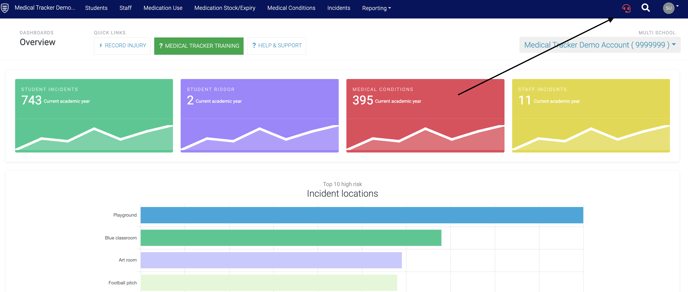
Once the case has been resolved, the school can click on the icon to disable remote access, or we will automatically disable access each day at midnight.