![MT White Logo _ PNG-01.png]](https://help.medicaltracker.co.uk/hs-fs/hubfs/MT%20White%20Logo%20_%20PNG-01.png?height=31&name=MT%20White%20Logo%20_%20PNG-01.png)
How do I set this up, and where can I find the information I need?
During the pilot phase of this integration, CPOMS will provide you with both pieces of information during the initial 15 minute set up call.
We require two pieces of information to connect to your CPOMS instance:
- an API token
- your CPOMS subdomain
Note:
For newer CPOMS accounts, your subdomain will be a string of letters and numbers, like this: c49a10f4-82b9-1e22-b4fa-5d01d565013b.
For older CPOMS accounts, your subdomain is the first part of the URL you use to access CPOMS e.g. if you type in demoprimary.cpoms.net when you log in to CPOMS then your subdomain will be demoprimary.
How do I set up the connection with CPOMS?
Head to Settings > Integrations. Find the CPOMS option and click the Configure button. Enter your CPOMS subdomain and your API token, then click Save and connect.
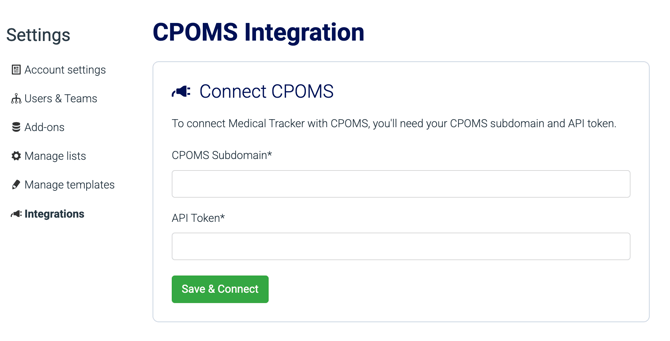
Remember that for older CPOMS accounts, your subdomain is the first part of the URL you use to access CPOMS. So if you type in demoprimary.cpoms.net when you log in to CPOMS then your subdomain will be demoprimary.
A common error is to paste the entire URL in—remember to only put in the first part of the address, before the first full stop.
I can see an Integrations page, but it says there are no integrations available.
The Medical Tracker x CPOMS integration is currently in a pilot phase and is not yet available to all customers.
If you know you are already part of the pilot, but cannot see an option to link to CPOMS, then please contact support@medicaltracker.co.uk and we can enable the setting for you.