![MT White Logo _ PNG-01.png]](https://help.medicaltracker.co.uk/hs-fs/hubfs/MT%20White%20Logo%20_%20PNG-01.png?height=31&name=MT%20White%20Logo%20_%20PNG-01.png)
Please ensure that your medical conditions in your MIS have a 'Medical condition name'.
If your conditions do not have a medical condition name then you will need to amend this directly in the MIS before completing the following steps.
1. Navigate to your school's Wonde account Portal: school.wonde.com/login
2. Navigate to the My apps section and select Medical Tracker.
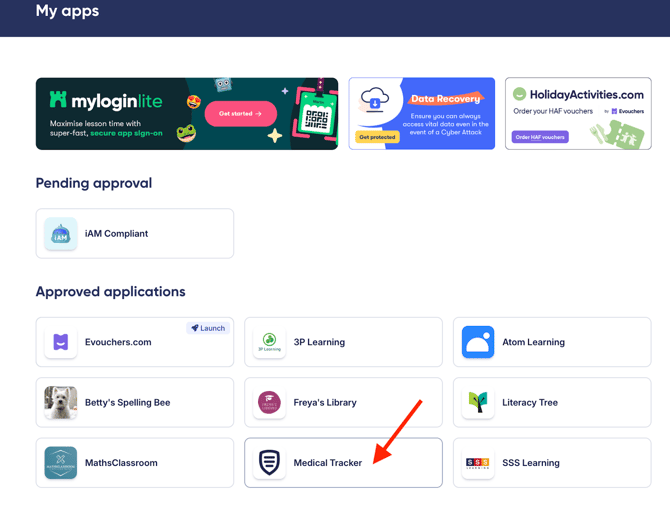
3. Review the requested data: Click on the application tile and select the "Permissions" tab.
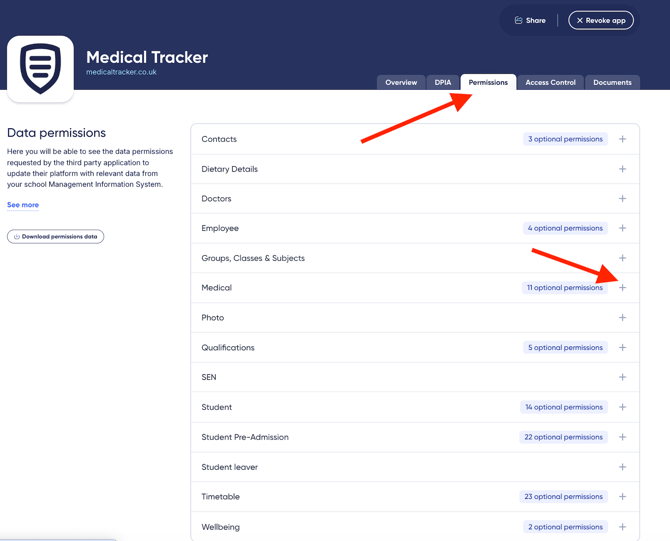
- Click the "+" to expand each data category (e.g., Medical) to see the specific fields being requested.
- Required permissions: These are essential for the app to function.
-
Optional permissions: These are for enhanced features.
4. You can use the toggle switches to enable or disable these individually based on your school's data policy.
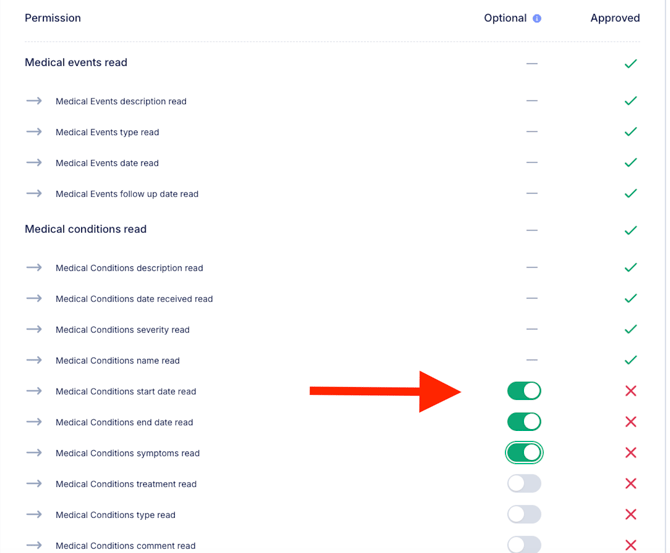
5. Once you are satisfied with the selection, click the "Update permissions" button in the top-right corner. A confirmation pop-up will appear. Click "Update application" to finalise the change and trigger the data sync.
6. Head back to Medical Tracker and go to Settings > Add ons > Wonde. Make sure that the Medical Conditions toggle is set to on, then click Save and update now.
It can take up to 30 minutes for the medical conditions to come through to the app.
PLEASE NOTE: If you have any duplicate medical conditions, please archive them rather than deleting them. Deleted medical conditions will reappear during the next sync.
If you need any assistance with this process, please feel free to contact our support team at support@medicaltracker.co.uk or call us on 0203 868 0776.
If you've made edits to conditions in your MIS today, that data won't be immediately available in Medical Tracker. For more information, please see this knowledge base article.