![MT White Logo _ PNG-01.png]](https://help.medicaltracker.co.uk/hs-fs/hubfs/MT%20White%20Logo%20_%20PNG-01.png?height=31&name=MT%20White%20Logo%20_%20PNG-01.png)
Many schools have asked for a better way to manage incidents across Medical Tracker and CPOMS, without having to duplicate the same information in two systems. To do this, we’ve built a direct integration that allows incident information to flow straight from Medical Tracker into CPOMS.
For a general guide to how this works, take a look at our overview.
Read on for detailed guidance on how to set up the integration.
Step 1: Set up your integration in CPOMS
You'll need to have an Admin user account in CPOMS to complete these first steps.
-
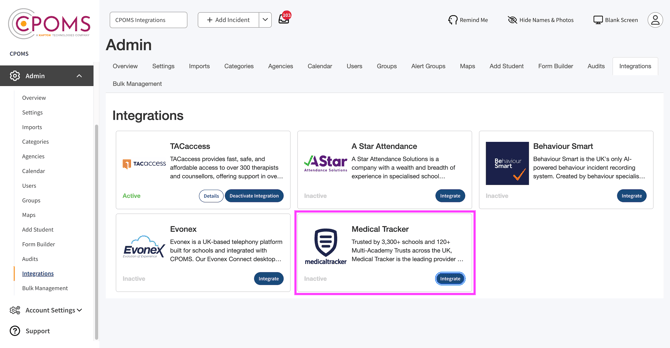
Log into your CPOMS account. Go to Admin and select Integrations.
-
Locate Medical Tracker and click Integrate.
- Copy the API key, URL and category into a document and save it. You'll need this information to complete the integration from the Medical Tracker side in step 4!
Step 2: Set up user group permissions and check role permissions in CPOMS
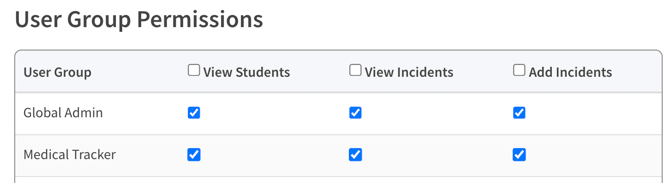
- Now go to Admin > Categories > Medical Tracker to set the user group permissions.
- The Medical Tracker user group should have all permissions ON, as in the screenshot below.
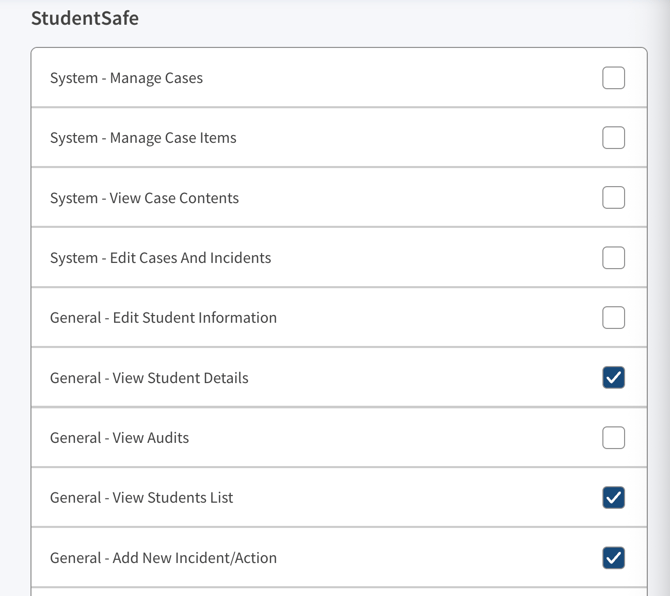
- Head to Admin > Roles and check the following permissions are ON, then save:
- General - View Student Details
- General - View Students List
- General - Add New Incident/Action
Step 3: Decide which users should have the Medical Tracker role in CPOMS
- Now ensure you give the appropriate staff members the Medical Tracker role under Admin > Users and contacts.
Step 4: Finish setting up your integration in Medical Tracker
You'll need to be a super user, or belong to a team with Admin permissions enabled in Medical Tracker to complete these steps.
- Log in to Medical Tracker
- Click your initials in the top right corner, and go to Settings > Integrations
- Find the CPOMS option and click the Configure button
- Enter your CPOMS subdomain and your API token then click Save and connect. You copied these into a document in step 1 earlier.
Note
For newer CPOMS accounts, your subdomain will be a string of letters and numbers, like this: c49a10f4-82b9-1e22-b4fa-5d01d565013b.
For older CPOMS accounts, your subdomain is the first part of the URL you use to access CPOMS e.g. if you type in demoprimary.cpoms.net when you log in to CPOMS then your subdomain will be demoprimary.
Having difficulties? Take a look at our frequently asked questions.