![MT White Logo _ PNG-01.png]](https://help.medicaltracker.co.uk/hs-fs/hubfs/MT%20White%20Logo%20_%20PNG-01.png?height=31&name=MT%20White%20Logo%20_%20PNG-01.png)
If you work at a single school, the steps are slightly different. Please see this help doc.
Notifications are controlled via the staff profile. Adding a staff profile is NOT the same as creating a user account; adding staff profile does not give that person the ability to log in to Medical Tracker.
This can be particularly useful for named allergy governors, who may not need access to Medical Tracker on a day-to-day basis but need to be kept informed of individual allergy incidents as they occur.
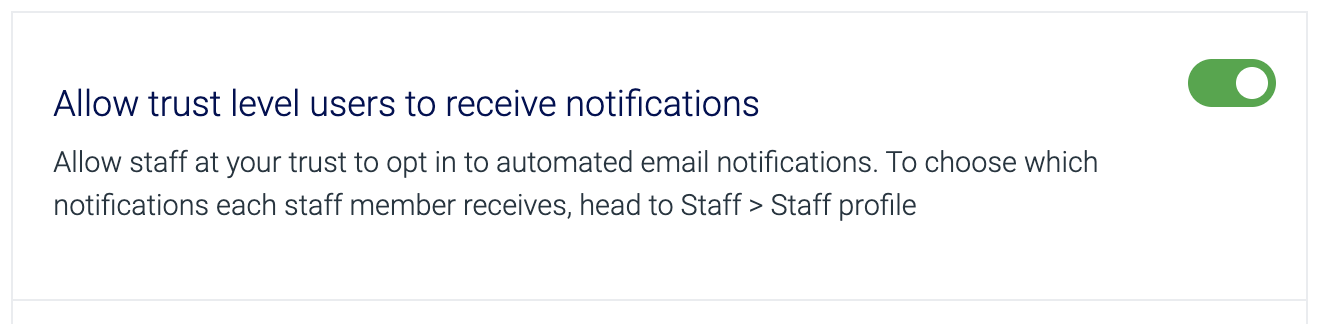
1. First, check that the following setting is ON. You can find it under Settings > Trust settings.
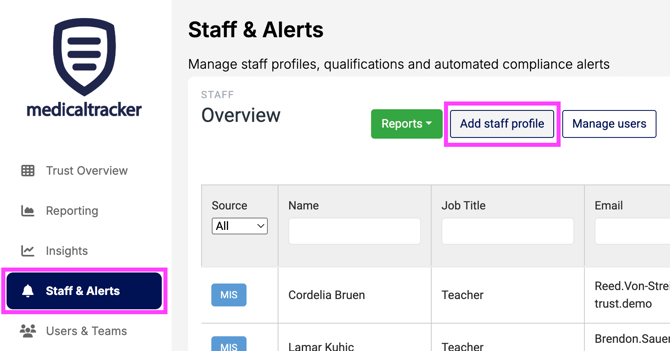
2. Go back to overview, head to Staff on the left hand side, then click Add staff profile.
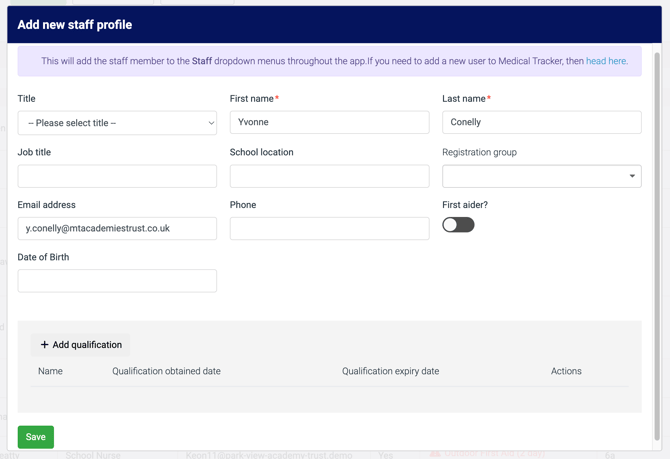
3. Enter the name and email address of the person you'd like to receive notifications and click Save to create their profile.
4. Click the Notifications tab and turn the toggles ON for any email notifications the staff member should receive.
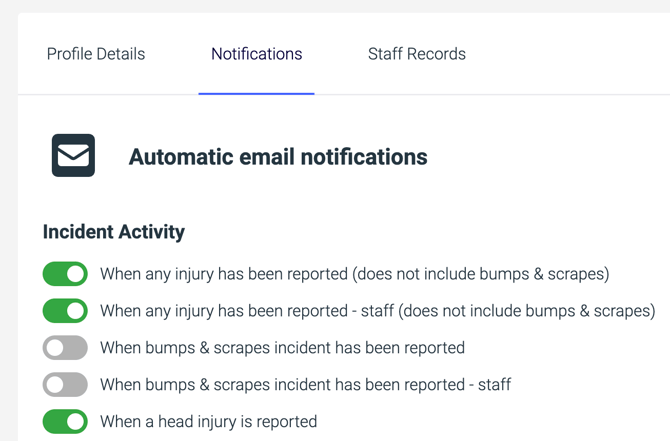
Note that certain combinations can trigger multiple notifications. For example, if you turn on 'injury', 'went to hospital' and 'head injury', an incident where a student is hospitalised following a head injury will send three notifications.
We recommend being targeted about which notifications each staff member should receive, based on their role.
5. Whenever an incident matching the selected notification types is recorded, at any of your schools, you'll receive an automated email with a link to view the details.
This is a secure link for one-time use only. Once you open the link the information will be accessible for 10 minutes. After that you will have to login to Medical Tracker to view the information again.