![MT White Logo _ PNG-01.png]](https://help.medicaltracker.co.uk/hs-fs/hubfs/MT%20White%20Logo%20_%20PNG-01.png?height=31&name=MT%20White%20Logo%20_%20PNG-01.png)
1. Make sure that you've set up the integration
The Medical Tracker x CPOMS integration is currently in a pilot phase and is not yet available to all customers.
If you know that you're part of the pilot, then the first step is to set up your CPOMS integration.
2. Create a new incident and check the 'Send to CPOMS' box
Once the integration is enabled, you will see a Send to CPOMS checkbox at the bottom of every incident form. This will be visible to all users who have access to record incidents on Medical Tracker.
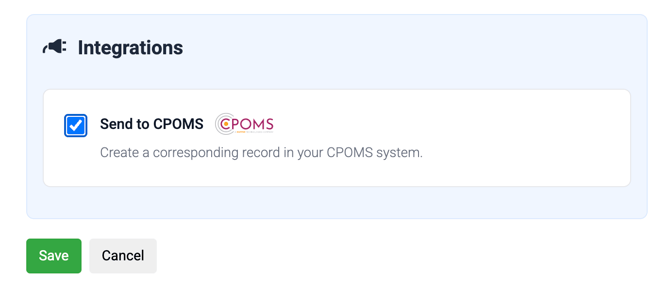
Check the box if you would like to send the incident across to CPOMS, then click Save. You can do this when you first create an incident, or later on, by editing the incident.
We'll first save the record to the Medical Tracker database, then we will send the incident across to CPOMS. This usually happens in a few seconds.
3. Check CPOMS
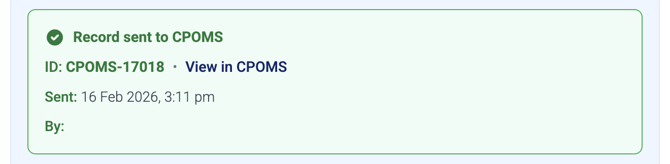
You'll see a success message, and the summary page of the incident will include a confirmation that the record was sent across, along with the timestamp and the person sending it.
There's also a link to view the record in CPOMS so you can confirm that it was sent.
If your question isn't answered here, please take a look at our frequently asked questions page. We will continue to add to this over the course of the pilot.