![MT White Logo _ PNG-01.png]](https://help.medicaltracker.co.uk/hs-fs/hubfs/MT%20White%20Logo%20_%20PNG-01.png?height=31&name=MT%20White%20Logo%20_%20PNG-01.png)
Requesting support:
When requesting support from Medical Tracker's Support desk, they will ask you kindly to click on the headphones on the top right hand side. This will allow the support agent to access your Medical Tracker account to help troubleshoot resolve and of your queries.
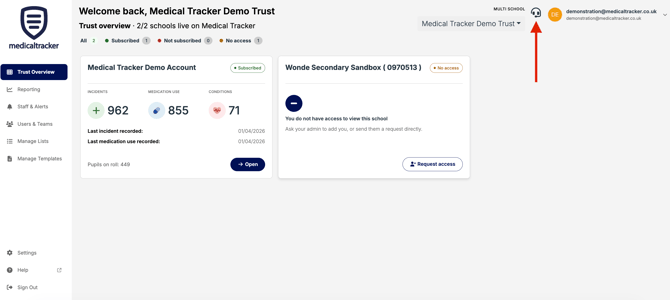
User control features:
Clicking your username will present you with:
-
Settings
-
Access to our Knowledge base / Help & Guidance
-
Sign Out
You can also access the same controls on the bottom left hand side.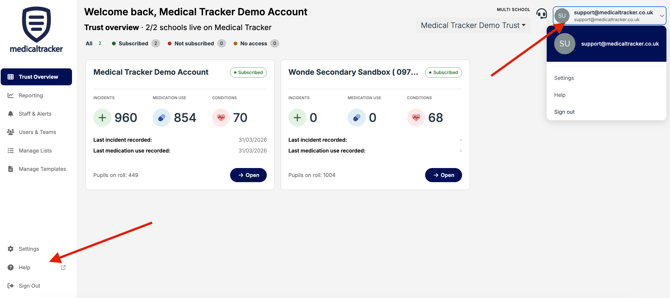
Trust Overview page:
On the trust overview homepage, you will be able to see all the key details for every school in your trust through each widget. Each of your school's that have an active Medical Tracker account you can click the 'Open' icon and this will take you directly to that school.
School's that say 'Request Access', If this is clicked this will notify a Member of our team who will contact the school directly to arrange access. 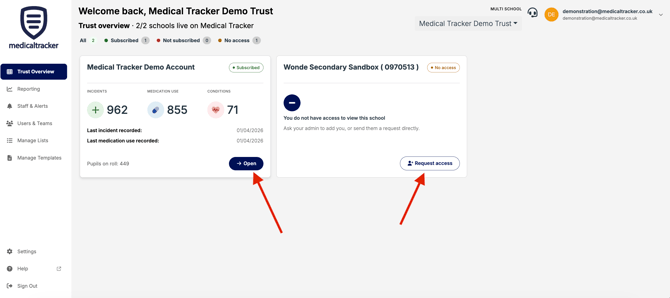
Within each individual widget for your school's you quickly will be able to see key details such as:
- Number of incidents recorded
- Number of medication uses
- How many active medical conditions
- last incident recorded date
- last medication use date
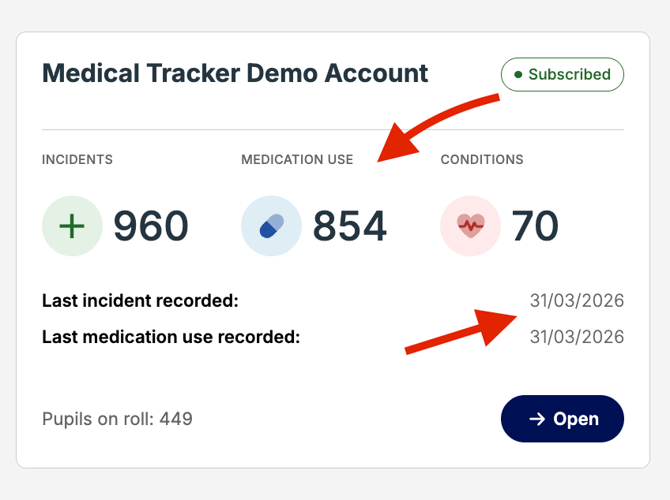
You can also see the total number of pupils on roll based on the information that has sync'd across directly from your MIS.
Reporting:
In this section you can see any reporting dashboard's or insights that have been created to pull data from each school's Medical Tracker account Along with being able to create new dashboards and create new insights.
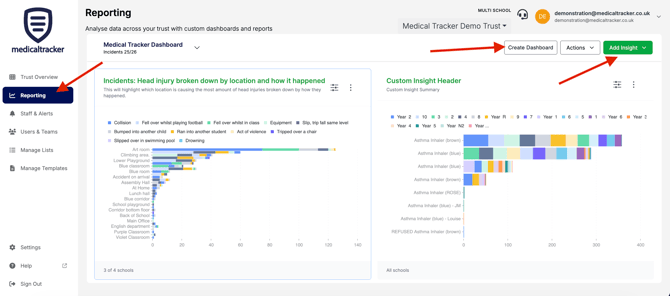
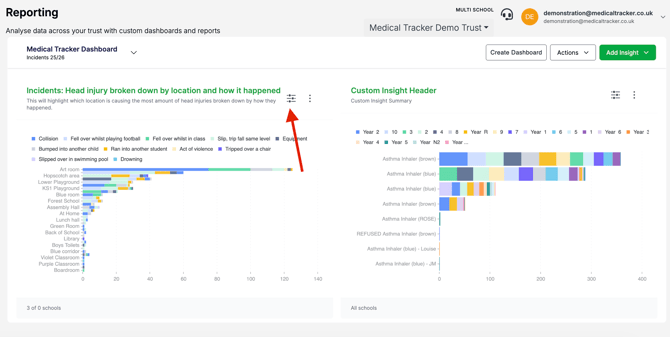
On the top right of each insight tile, you can click the below icon to amend the parameters of your insight.
The button to the right of this will allow you to export the insights or delete the insight.
Staff and alerts:
This sections allows you to manage your staff profile information along with automated notifications and any qualification you may wish to add for users.
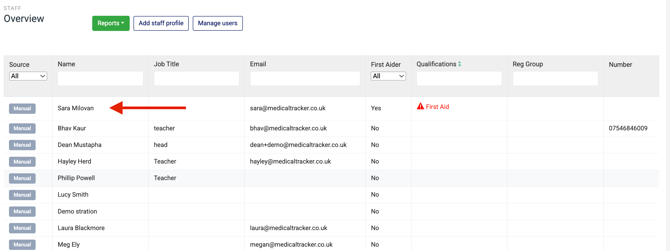
Simply click on a staff member's name and this will take you directly to their profile.
Once in their profile you can amend:
-
details regarding the staff member
-
Set automated notifications
-
See their staff medical records
- Add qualifications
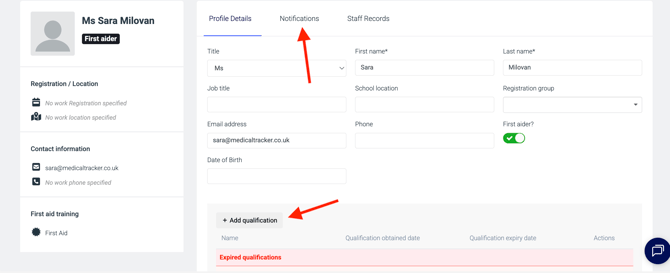
On the left hand side of the profile you can find details which have sync'd across directly from your MIS such as 'registration/location', Contact information including email and work phone number.
Please see our guidance on setting automated notifications and Adding Staff qualifications
Users and Teams:
This section allows the Trust to manage all it's user accounts and determine which account has what type of access.
The Trust can create teams and set user permissions through the 'Create Team' button.
They can also add new new users following the 'Create User' form.
You can also add users in bulk from the 'Create Multiple Users'. This will pull the list of emails held in your 'Staff and Alerts' section. Please see our guidance on bulk creating users
For individual users, please see our guidance on creating teams and setting permissions 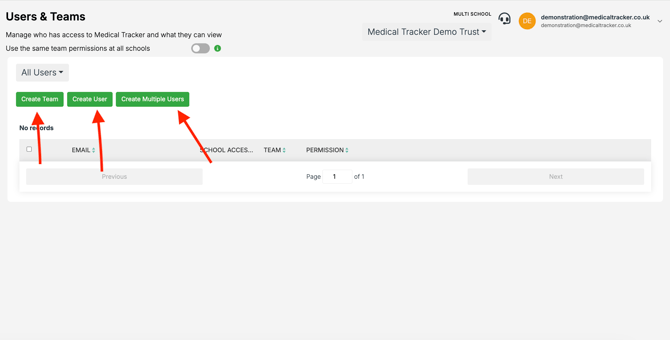
The Trust can also determine if the team' and permissions set in here will be pushed down and used across all their schools by toggling on this feature. 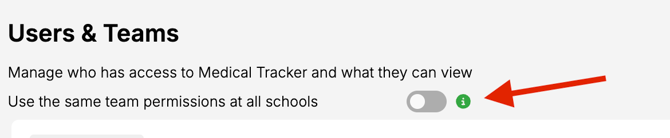
Manage Lists:
In this section you can manage all the individual lists that are used across Medical Tracker.
The trust can take ownership of these and ensure they are pushed down into the individual schools by toggling on the top feature. This will ensure all the school's use the same lists.
*Please note school's will still be able to add their own locations but will need to assign the category set by the trust*
You can click into each different module such as 'Injury' and add further 'Injury symptoms' if needed. 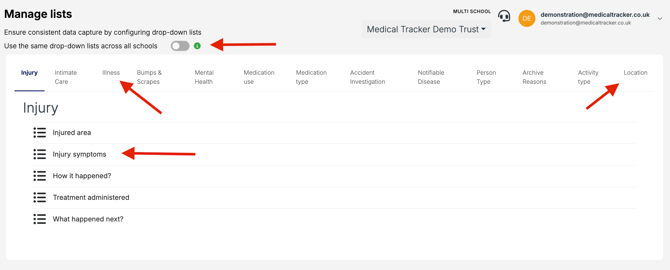
Please see our guidance on Managing Lists in Medical Tracker.